-
Overview of Accessible Slides
Ensuring that digital slides are accessible is essential for creating an inclusive learning environment where all students, including those with disabilities, can fully engage with course content. Thoughtful slide design not only removes barriers to learning but also reflects a commitment to equity, academic success, and respect for diverse learning needs.
-
Practices for Making Accessible Slides
Review the following practices that support digital accessibility for your slides:
- Use High-Contrast Colors: Ensure strong contrast between text and background to support students with low vision or color blindness.
- Readable Fonts: Choose sans-serif fonts (e.g., Arial, Calibri) and keep font sizes large enough (minimum 18pt).
- Slide Titles: Provide a unique title on each slide to aid screen reader navigation.
- Alt Text for Images: Add clear, concise alternative text for all images, charts, and diagrams.
- Descriptive Links: Use meaningful link text (e.g., “Read more about accessible design” instead of “Click here”).
- Reading Order: Check that the slide content follows a logical reading order, especially when using complex layouts.
- Provide Digital Copies and/or Recordings to contextualize: Share accessible versions (e.g., tagged PDFs or accessible PowerPoint files) ahead of time so students can review content with their preferred tools.
- Context for Slides: Consider recording the lecture portion of class that accompanies the slides. You can also do this prior to or following the lecture using the Record feature in PowerPoint if preferred. This not only provides another way for students to engage with the material, it also provides you with additional means for delivering the lecture in the event of disruptions to in-person learning in the future. When presenting, make an effort to describe what is shown on the slide (“here we are looking at a map of the United States that shows the topography of our largest mountain ranges”).
-
Creating Accessible Slideshows
In PowerPoint
Use one of the accessible PowerPoint templates to make sure that your slide design, colors, contrast, and fonts are accessible for all audiences. They are also designed so that screen readers can more easily read the slide content.
- To find an accessible template, select File > New.
- In the Search for Online templates and themes text field, type accessible templates and press Enter.
- In the search results, select a suitable template.
- In the template preview, select Create.
You can also use the Accessibility Checker within PowerPoint to detect accessibility issues. To manually launch the Accessibility Checker, select Review > Check Accessibility. The Accessibility pane will open to allow you to review and fix accessibility issues.
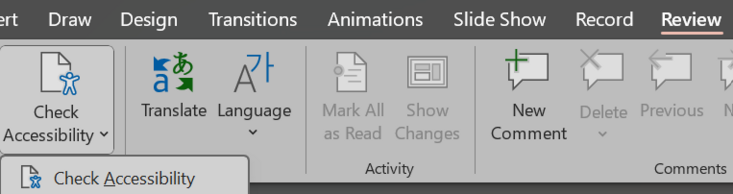
Alt text: Select Review from the top menu, then the Check Accessibility icon to open the tool.
In Google Slides
View guidance from Google on accessible Docs, Slides, Sheets, and videos
In Keynote
View guidance from Apple on accessible Pages, Numbers, or Keynote
-
Summary & Key Takeaways
Summary & Key Takeaways
- Avoid using a lot of animations, flashing text, or transitions as these are difficult for a screen reader to understand.
- Utilize the slide notes to communicate the description of the slide. Be sure these are included when posting the slides for student view.
- Check accessibility of slides (using the accessibility checkers) before posting. It may be more challenging to make slides accessible when converting to PDF.
- Share slides in advance of lecture so that students can follow along and annotate as part of their note-taking process.
- Be sure to not assume that all students can view your slides as you are presenting and consider providing recordings of slideshow presentations to students as well.
- Using PowerPoint templates is one of the best ways to ensure your slideshow is accessible ‘out of the box'.